
Features
Lights and scenes
One tap per room, scenes that remember each device, and a Home app that only shows what was confirmed.
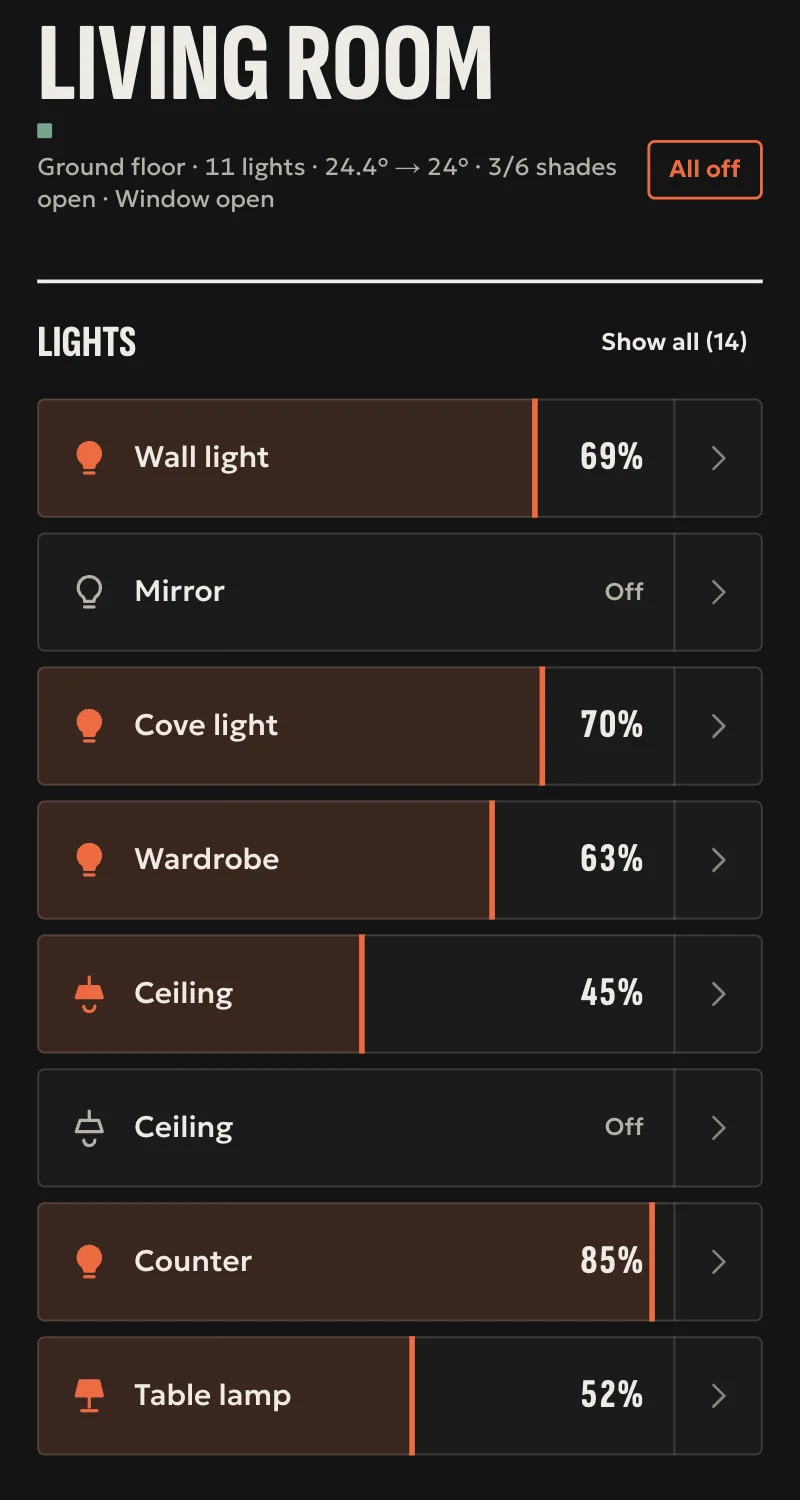
You light a room with one tap. A scene sets the whole room the way you like it. And Home shows a light as on only after the hub has confirmed it from the device.
In Home
One tap per room
The room card has a lamp button. If any light is on, it turns them all off. Otherwise it turns them on.
All off, with undo
Turn off the lights on a floor or in the whole home, and for a few seconds you have an undo that puts them back as they were.
Scenes
A scene remembers how each device is. When you tap it, the hub sends one command per device and waits for all of them to answer.
Light groups
Several lights, one dimmer. The group is on if any of its lights is on, and its brightness is the average.
Photo view
The installer photographs the room from a fixed spot: once with everything off and once with each light alone, up to 8 lights. Home blends the photos, so you see the real light in the real room.
What you can set, by family
It depends on the driver. All of them turn on and off.
| Family | Brightness | Colour temperature | Colour |
|---|---|---|---|
| Philips Hue | Yes | Yes | Yes |
| Zigbee, directly on the hub | Yes | No | No |
| Shelly Gen2 and newer | Yes | No | No |
| Fibaro / Yubii Home | Yes | No | No |
| Sonoff LAN, L1 and L3 strips | Yes | No | Yes |
What a scene remembers
| Device | What it keeps |
|---|---|
| Light | On or off, brightness, colour or colour temperature |
| Switch, fan | On or off |
| Blind | Position, or open and closed if it reports no position |
| Air conditioner | Off or its mode. Not the temperature |
| TV | On or off |
| Lock, alarm | Nothing. The hub refuses to put them in a scene |
Make a scene from Home
For owners and managers. For detailed settings per device, the installer has the editor in Partner.
Set the room the way you want it
With the sliders you already have. There is no separate setup screen.
Tap «Νέα σκηνή» (New scene)
Home keeps the room's lights and blinds as they are right now.
Give it a name
Done. The scene is in the room, and automations can use it too.
Do I see my Hue and Yubii scenes?
Yes. They appear in Arvio as scenes and you tap them like any other.
Do I need a new phone for the photo view?
No. The installer uses their phone's camera or uploads files. No LiDAR needed.
Who can see it?
Members of the household, not guests. The photos are stored in Arvio Cloud.
Which lights do you already have?
Tell us about your space
Tell us what you have and what you want, and we will work out together what your space needs.