Help
Installer's guide
From the box to handover: a new installation in Arvio Partner, connecting the hub with QR and code, the owner, devices and screens.
On this page
Arvio Partner is at partner.arvio.systems and needs no terminal, no config files and no open ports on the router. Your account opens with an invitation from SFK, and you sign in with a code from your email. The app is in Greek, so screen names are given in Greek with their meaning.
What you need
- A hub prepared by SFK, with a QR label on it.
- Power and an Ethernet cable on site.
- A phone or tablet with a camera, on the same local network as the hub for the code step.
- Your Arvio Partner account, and the owner's email address.
A new installation
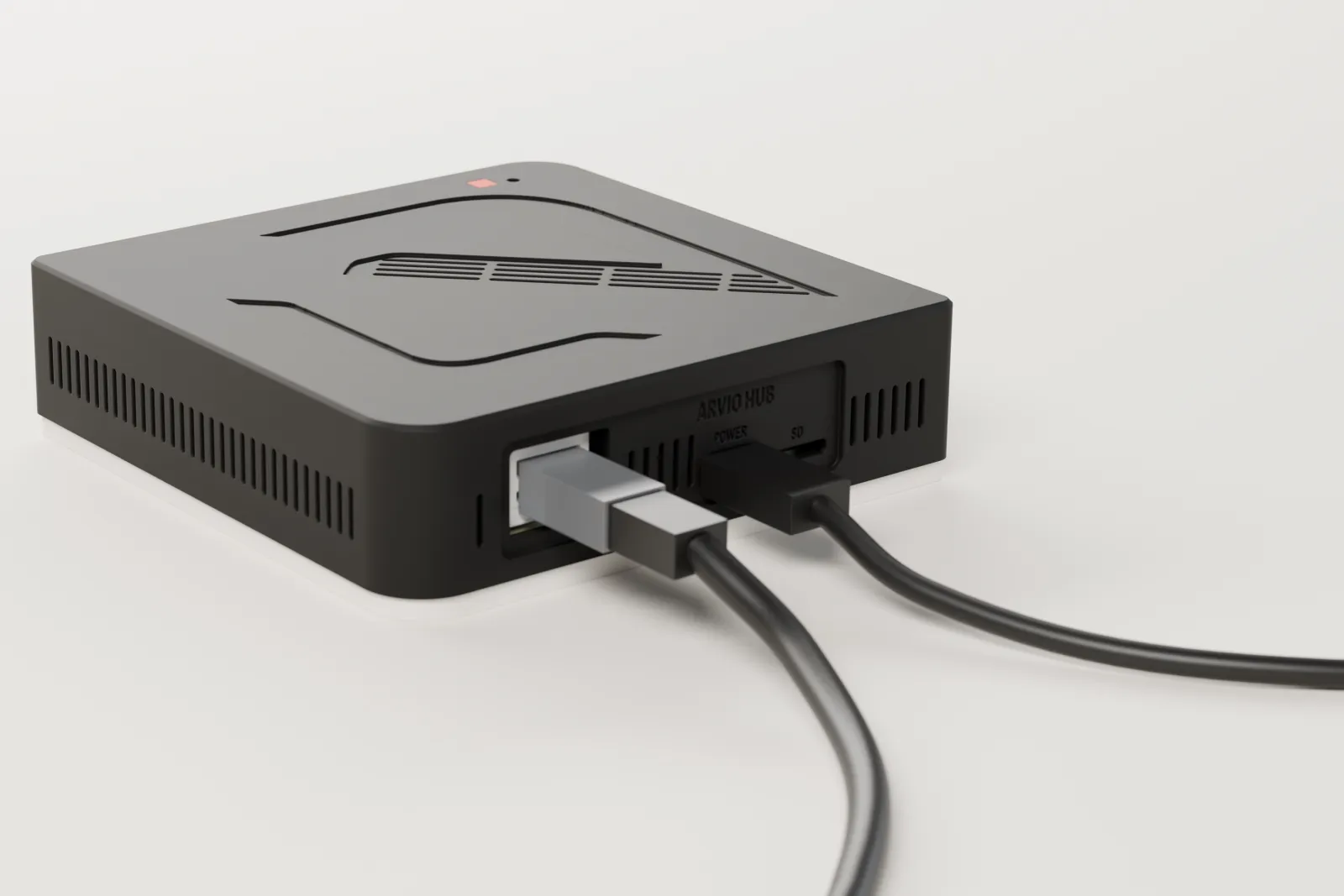
Power and Ethernet
Connect the hub and wait for it to come online. Then pull the power and put it back: it must start by itself, with no button, and come back online. If a mini PC does not, set «After Power Loss» to Power On in the BIOS. Otherwise the hub is not handed over.
Scan the QR
With your phone's camera. Arvio Partner opens with the hub already selected. No QR to hand? Under «Νέα εγκατάσταση» (New installation), type the serial number from the label. There is no list of unclaimed hubs.
What you are installing
Give it a name you and the customer will both recognise. Every new installation starts as «Σπίτι» (Home), and becomes «Χώρος 24/7» (24/7 venue) once SFK switches the driver on for the hub.
Connect the hub
Enter the 6-digit code from the hub's page on the local network. The wizard shows you where to find it. It changes every 5 minutes. The hub binds to this installation once.
Invite the owner
Enter their email. They get a code and a link for Arvio Home, and as soon as they come in, the house is theirs. If the house already has an owner, the invitation goes out as a member.
Set up the house
Open the installation and work through the tabs. You can leave the hub and the owner for later with «Αργότερα» (Later).
The tabs of an installation
| Tab | What you do there |
|---|---|
| Επισκόπηση (Overview) | How the hub is doing right now, at a glance. |
| Συσκευές (Devices) | Search, filters for offline and unassigned devices, Zigbee pairing, cameras, speakers, light groups. |
| Δωμάτια (Rooms) | Put each device in a room on the spot, and rename rooms. |
| Μακέτα (Model) | A floor plan and 3D model of the floor, in three steps. |
| Οθόνες (Screens) | Wall panels: layout, doorbell, pairing. |
| Χώρος 24/7 (24/7 venue) | Venues only, once SFK switches the driver on for the hub: a five-step guide for zones, doors and packages. |
| Αυτοματισμοί (Automations) | Scenes, automations, programs, and which scenes Arvio Home shows. |
| Πρόσωπα (People) | The owner, members with a role (never owner), presence. |
| Hub | Hub and site details, linking an Ajax account, the project's drivers. |
| Ημερολόγιο (Journal) | Commands that went through the cloud, newest first. |
Wall panels
From the Οθόνες (Screens) tab. First create the screen, then tie it to a panel.
Android panels on the network
The hub searches the local network only when you ask, installs the Arvio Panel app and pairs it with no code. ADB has to be switched on once on the panel.
iPad
The iPad scans a QR from Arvio Partner and gets a full-screen icon that pairs itself. Then you lock it with Guided Access.
With a code
In a plain browser, the panel opens the hub's page and you enter the 6-digit code from Arvio Partner, once.
Do not
- Do not open ports on the router. The hub connects outward by itself.
- Do not leave shared passwords, and do not keep the customer's account. Name the customer's email as owner: the house is theirs, and they can remove your access.
- Do not hand over a hub that has not passed the power-cut test.
- Do not connect a hub from a photo of its QR while someone else is on site. The code step is done on the spot.
If the hub is replaced
Write to SFK. SFK handles the replacement: it prepares the new hub, the data comes back from an encrypted backup, and the old one is taken out of service so that two hubs never run the same house. Installers hold no key to the backups.
Ready?
Partnership starts with an invitation from SFK and costs €99 + VAT a year. To become a partner, write to us about your company and your area.
Tell us about your space
Tell us what you have and what you want, and we will work out together what your space needs.